Can I set a dashboard as my start page?
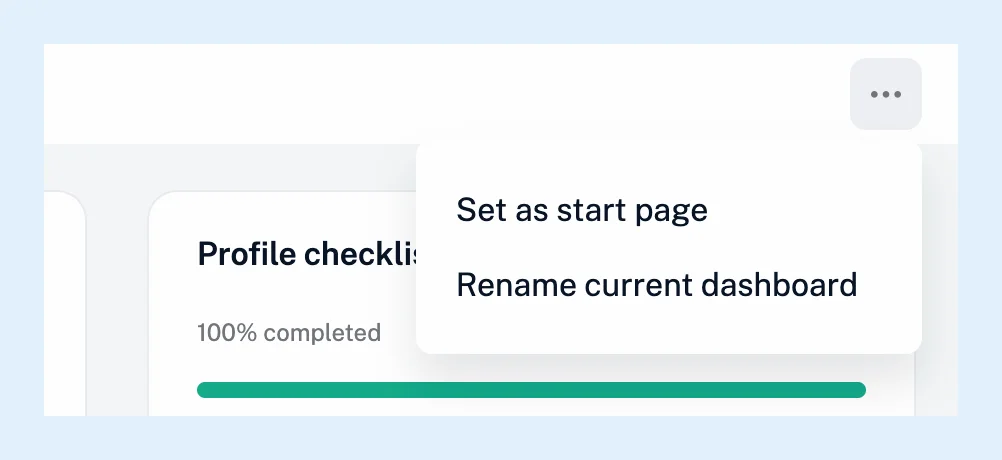
Yes. Open the dashboard, click the three-dot menu at the top right of the page and choose Set as start page. Inoreader then opens on your dashboards instead of the Newsfeed whenever you open inoreader.com.
Set a dashboard as the start page
- Click Dashboards in the left tab bar, or press G then D, and open the dashboard tab you want.
- Click the three-dot menu at the top right of the page.
- Choose Set as start page. A checkmark appears next to it.
- To make the Newsfeed your start page again, open the same menu and choose Set as start page once more.
Open Inoreader on the start page
The start page applies when you open the site's own address. A direct link to a feed, a folder or another section still opens that section. It's stored on your account, so it follows you to any browser you sign in on the web.
Dashboards opens on the dashboard you viewed last. When you have several dashboards, open the one you want to see first before you leave.
Use another section as the start page
Any feed, folder or tag can be your start page instead, and so can the Newsfeed, Today, Read later and a Team channel. Open the section's menu with the down arrow next to its title, or right-click the item in the sidebar, and choose Set as start page. An account has one start page, so the latest choice replaces the earlier one. When the start page points at something that no longer exists, for instance a feed you unfollowed, Inoreader opens the Newsfeed again. A Team dashboard has its own Set as start page in the same three-dot menu.
Plans
Setting a start page works on every plan, and so do dashboards. If you're new to them, start with what dashboards are and how to customize their layouts and widgets, or watch the video .
Can't find an answer? Contact support