Can I move feeds between folders?
Yes. Drag a feed in the sidebar from one folder onto another, and it moves there. Nothing happens to the feed's articles or your read marks, because the feed itself stays the same.
Drag a feed in the sidebar
A folder is a group of feeds, and a drag changes which group a feed is in. Hold a feed and drop it on a folder:
- Dragging a feed from one folder onto another moves it: it leaves the old folder and joins the new one.
- Dragging a feed from the top level of the sidebar onto a folder adds it to that folder.
- Dragging a feed out of a folder onto a feed at the top level takes it out of the folder.
A folder left without feeds is removed automatically, unless it still holds tagged articles.
Keep a feed in both folders
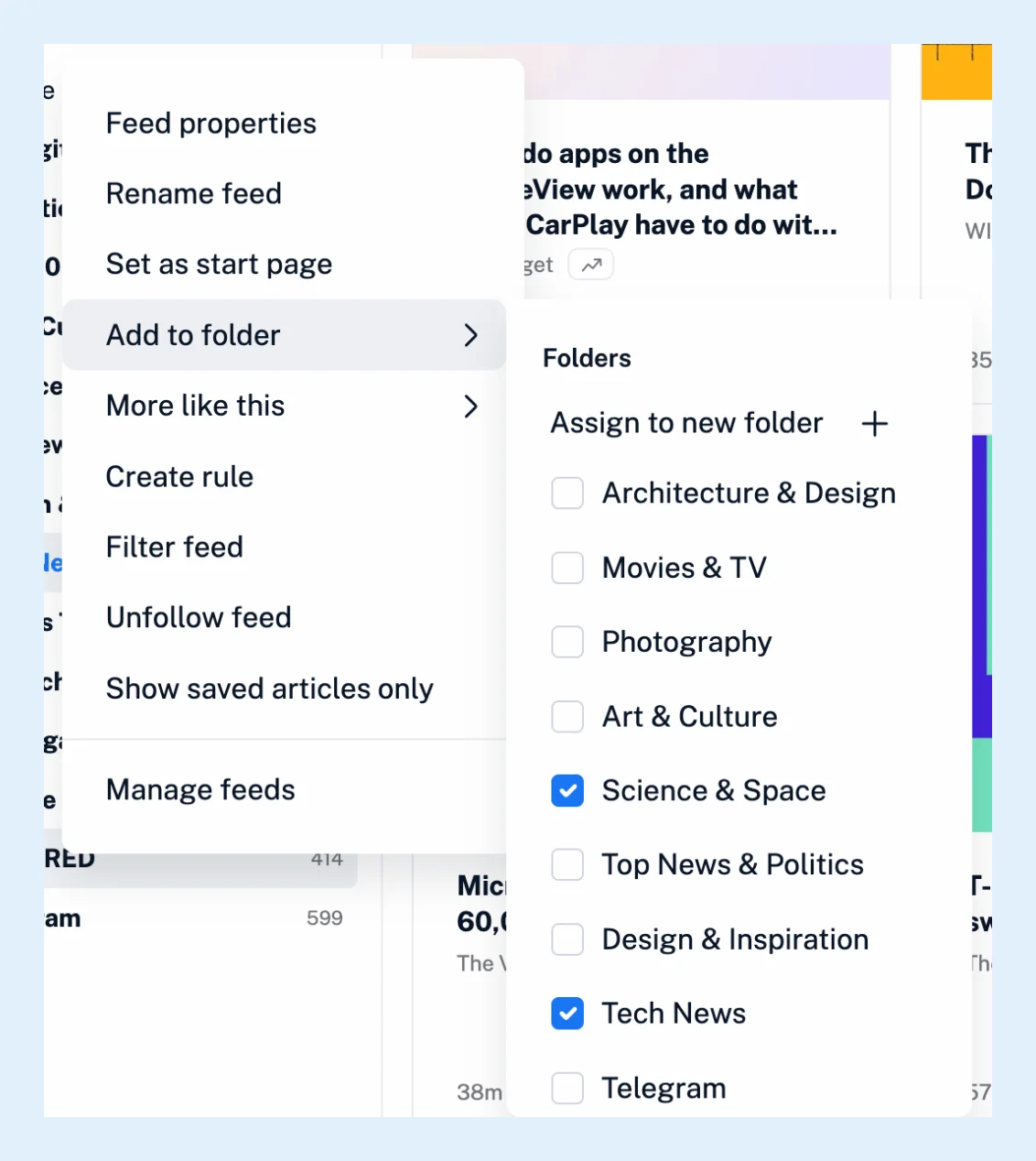
A drag moves, so when you want the feed in two folders, right-click it, choose Add to folder and tick every folder it belongs in. Untick a folder to take the feed out of it, or choose Assign to new folder to create one for it. One feed can belong to several folders, and that article explains what the folders share.
Move many feeds at once
Open Manage content from the icon next to the Feeds heading and select the feeds in the Feeds tab. Under with selected, choose a folder under Add to folder, Remove from all folders or Add to new folder, and click Go.
Delete a folder
When you delete a folder, the Unfollow all feeds box in the confirmation is ticked by default. Untick it to keep the feeds, which then sit at the top level of the sidebar until you add them to another folder or create a new one for them.
Team folders
On Team plans, a Team folder's feeds are managed by the team admins, so the drag and the Add to folder menu apply to your own folders only. The Folders and tags feature page gives an overview of both.
Can't find an answer? Contact support