How do I subscribe to a newsletter with Inoreader?
Create a newsletter feed under Add feed > Newsletter feed: give it a name, keep or edit the suggested address, and click Create email address. Then subscribe to the newsletter on the sender's site with that ino.to address, or forward emails to it, and every issue arrives in the feed.
Create the feed and its address
- Click Add feed in the tab bar and choose Newsletter feed.
- Type a Name for the feed. The Email address fills in from the name. Edit it if you like, with 5 to 20 lowercase letters and digits.
- Click Create email address. The new feed opens with its address and a Copy button.
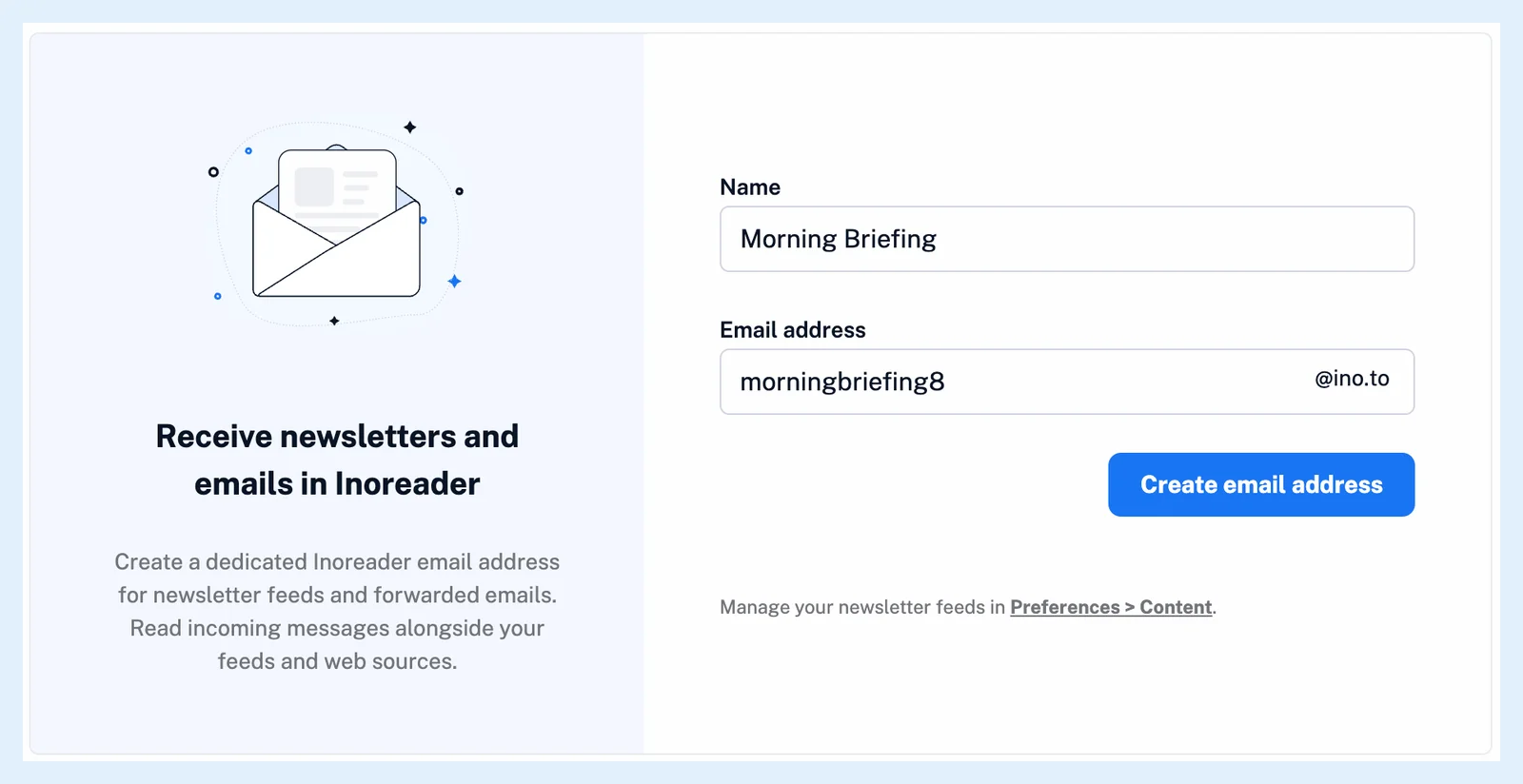
An address another reader already uses isn't available: the suggestion gets a number added, and saving a taken address asks you to pick another one. The address is also shown in the feed's Feed properties under Email address.
Subscribe or forward
- Copy the address from the new feed's How to get started card.
- Subscribe to the newsletter with it on the sender's site, or set up automatic forwarding from your email account to it.
- When the newsletter or your email provider sends a confirmation email, open it in the new feed and confirm from there.
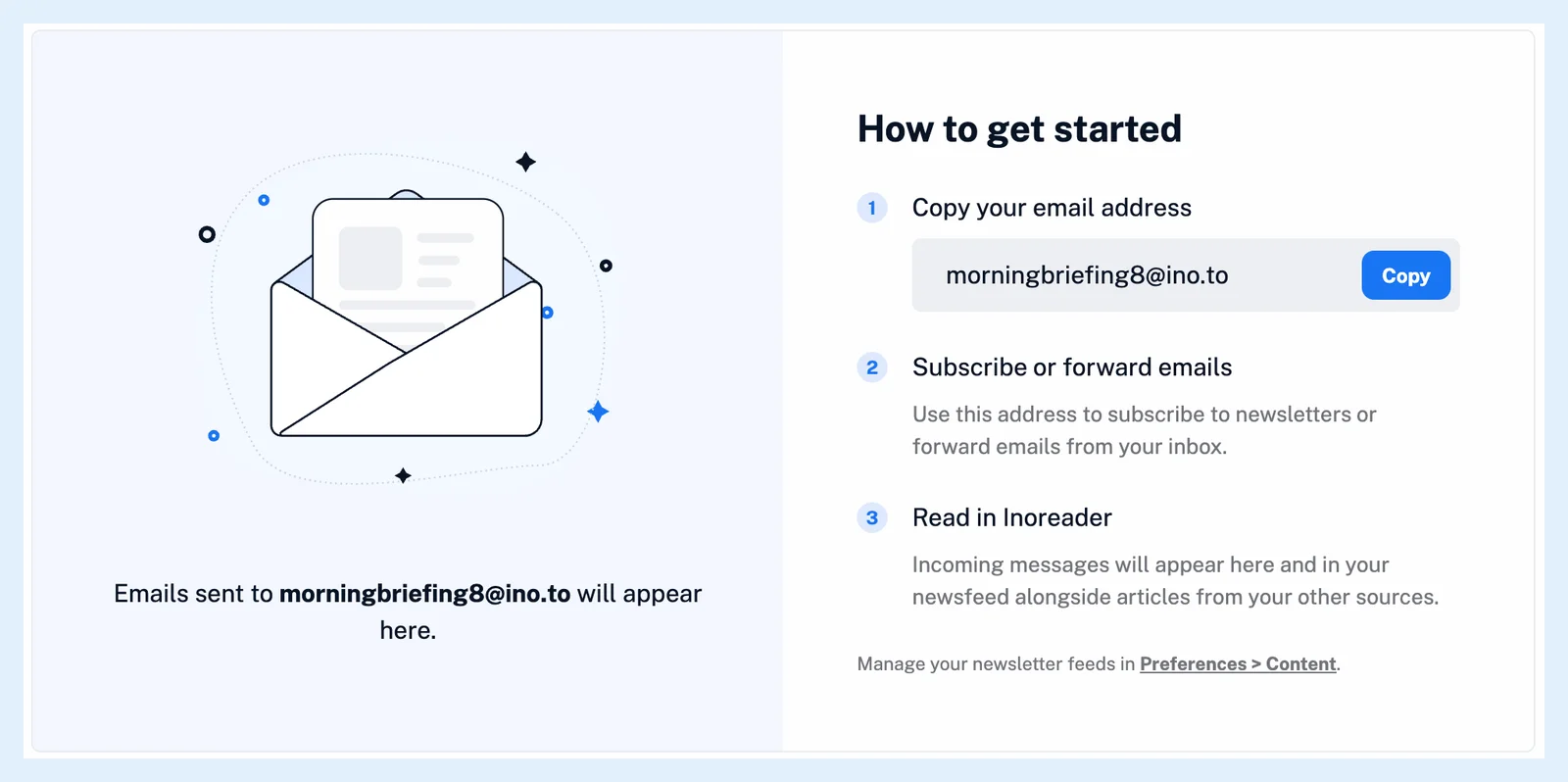
Every email sent to the address is saved as an article, whoever sends it, so confirmation emails arrive in the feed like any issue. Several newsletters can share one address and then share one feed. A separate feed per newsletter keeps them apart. What are newsletter feeds? explains what the feed holds, and Can I process newsletters with rules and filters? how to sort the emails automatically. When an issue doesn't show up, Why is my newsletter not arriving? walks through the checks.
Plans and limits
Newsletter feeds are a Pro feature: Pro includes 20, and a Team with a shared pool shares 100 or 150 across the team. At the limit, the page shows your plan's limit with an Upgrade button instead of the form. You manage your newsletter feeds in Preferences > Content. The idea is explained in Declutter your inbox: subscribe to email newsletters straight into Inoreader.
Can't find an answer? Contact support