Where can I find saved Intelligence reports?
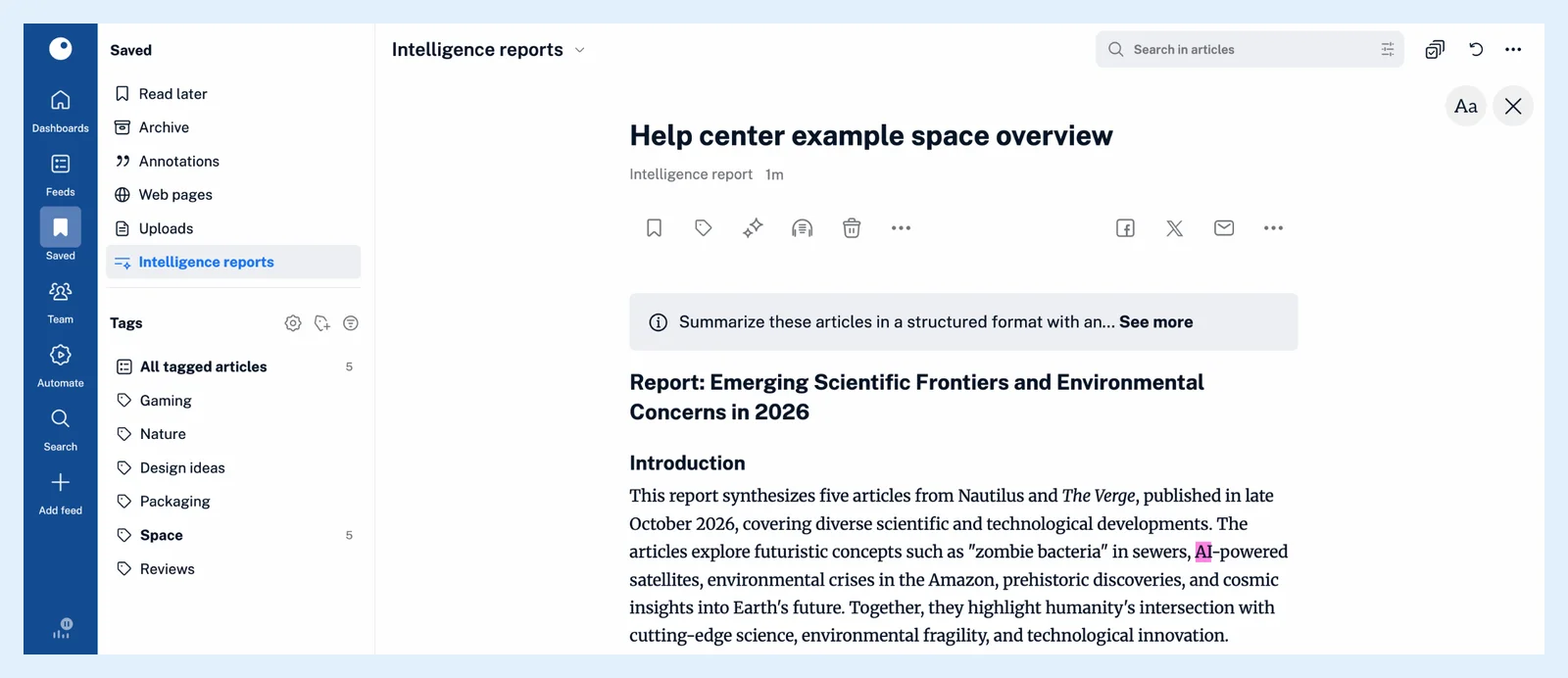
Click Saved in the tab bar and choose Intelligence reports in the sidebar. Every report you saved and every report your automated reports produced is listed there as an article, newest first.
Open a report
- Click Saved in the tab bar.
- Choose Intelligence reports in the sidebar.
- Click a report to read it.
The source line of a report reads "Intelligence report", and the prompt sits in a box above the text, with See more for a long one. A report is an ordinary article: open, tag, annotate, export or share it, and search the list with the box above it, as Can I search through Intelligence reports? describes. To remove one, click Delete article in the article toolbar.
Reports stay until you delete them, and the ones you saved stay readable if the add-on ends. Deleting an automated report keeps the reports it made.
Find reports shared with your team
On a Team Intelligence plan, Intelligence reports in the Team sidebar lists the reports saved with Make visible to Team members and the team's automated reports, from every member. What is my Team sidebar and what can I find there? describes that sidebar.
Review the issues of an automated report
Go to Automate > Automated reports and click a report row. The Past issues table lists each run with Articles, Generated on and a View button. A run whose report you deleted shows "Deleted", a failed run shows "Skipped" with the reason when you hover over it, and Load previous 10 shows older issues. See what automated reports are.
Plans and limits
The Saved section shows for every account, while creating and saving Intelligence reports needs the Intelligence reports add-on on Pro and Custom plans or a Team Intelligence plan. How do I create an Intelligence report? shows how to make one.
Can't find an answer? Contact support