Can I hide YouTube Shorts from my folders?
Yes, with Pro. Right-click a folder, choose Folder properties, and turn on Remove YouTube Shorts on the Automations tab. Shorts from every YouTube channel in the folder disappear, including the ones already there from the last 30 days.
Hide Shorts in a folder
- Right-click the folder with your YouTube channels in the sidebar and choose Folder properties.
- Open the Automations tab.
- Turn on Remove YouTube Shorts.
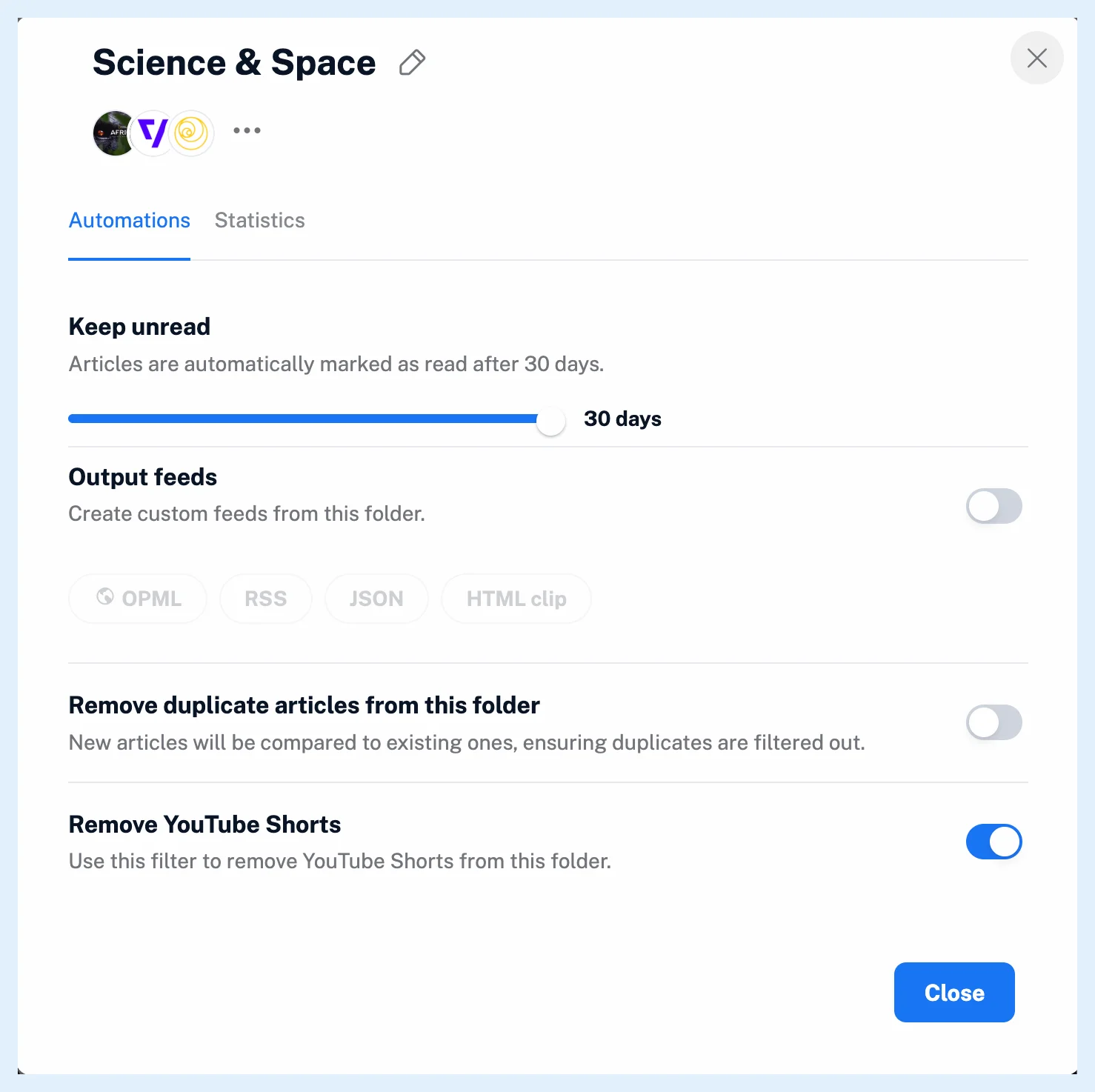
For a single channel, right-click it, choose Feed properties and turn on the same switch on its Automations tab. The switch appears only for YouTube channel and playlist feeds. When the channel's folder already filters Shorts, the feed's switch is on and locked.
The videos the filter removes
A video counts as a Short when its address is youtube.com/shorts/... or it runs 62 seconds or less. Turning the switch on hides the Shorts the folder already received in the last 30 days, and new Shorts are removed as they arrive, once Inoreader has read the video's duration from YouTube. Channels you add to the folder later, by dragging, through Add feed or with an OPML import, get the filter too. Turning the switch off brings the hidden Shorts back.
The switch is for your own folders. Team folders don't have it. To keep only some videos by a word in their title, use a content filter instead. If you sync your YouTube subscriptions into one folder, this switch keeps that whole folder free of Shorts.
Plans and limits
The Shorts filter is a Pro feature. Free accounts see the switch locked with Upgrade now. When Pro ends, the filter stops removing new Shorts and works again when Pro returns. Unfollowing a channel removes its filter. Follow YouTube channels in your RSS reader has the overview, and the video shows how folders work.
Can't find an answer? Contact support